 SPFX Pretty
Home › How to use
How to use SPFX Pretty
Install
- Open VS Code and go to Extensions (
Ctrl+Shift+X). - Search for SPFX Pretty and click Install - or open it on the Marketplace.
- Open an SPFx project. The SPFX icon appears on the Activity Bar (left edge).
Or from a terminal: code --install-extension kachihro.spfx-pretty
Updates arrive automatically through VS Code, like any other extension.
The report
Open an SPFx project (a folder with config/package-solution.json) and click the SPFX icon - the report opens straight away. It is grouped into sections you can fold:
| Section | What you see |
|---|---|
| Where people see your app | Your app as the App Catalog, "Add an app" and Site Contents show it - name, icon, description. |
| Toolbox | Each web part tile with its title, icon and the toolbox section it really lands in. |
| Property pane | The labels and default values authors see when they edit the web part. |
| Version & upgrade | SPFx, React, Node and TypeScript versions, and an upgrade plan with effort. |
| All checks | Every finding, grouped by area, with fix buttons and ? Explain. |
Each section header has ✨ Fix all for its safe fixes, and a count of things to polish.
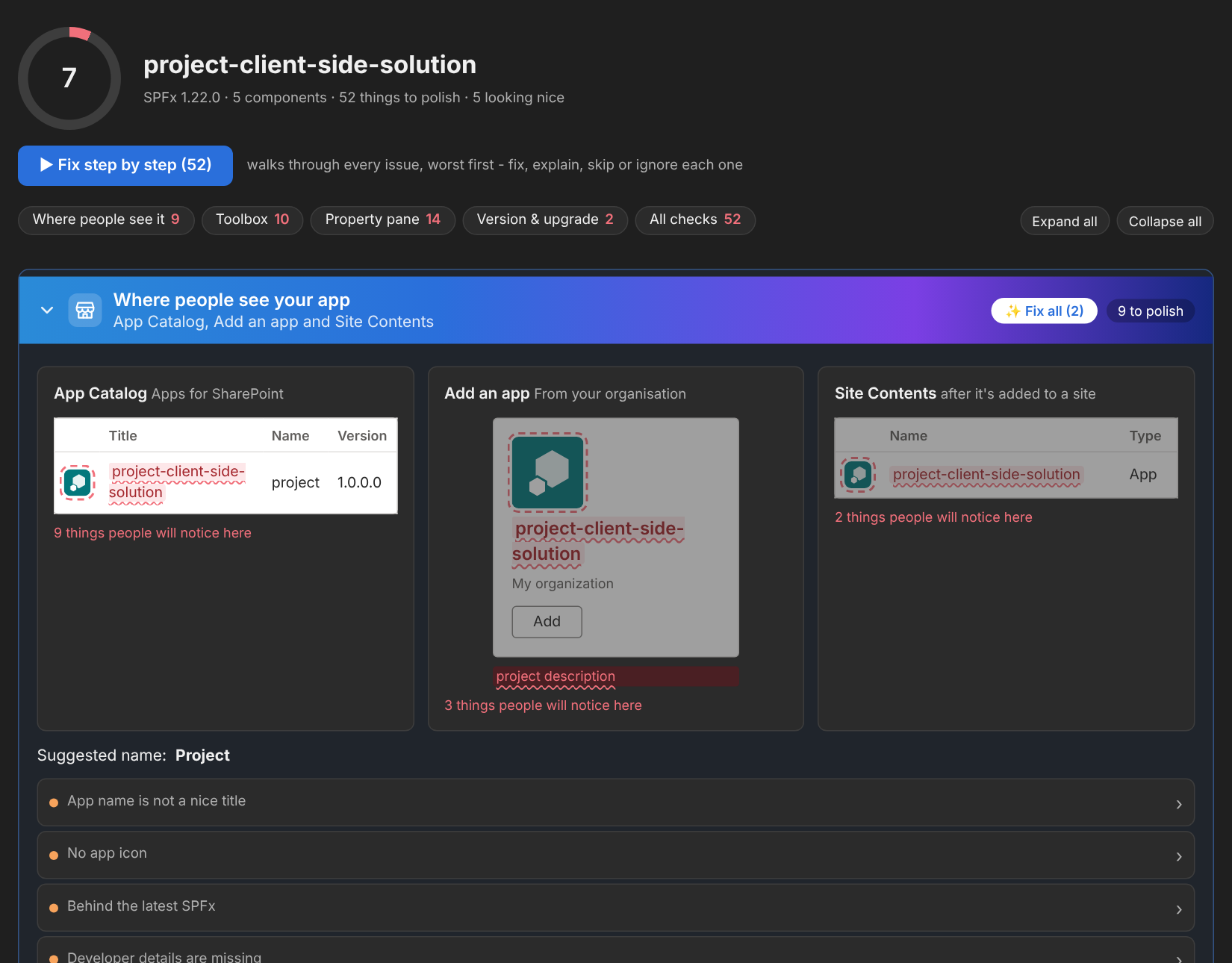
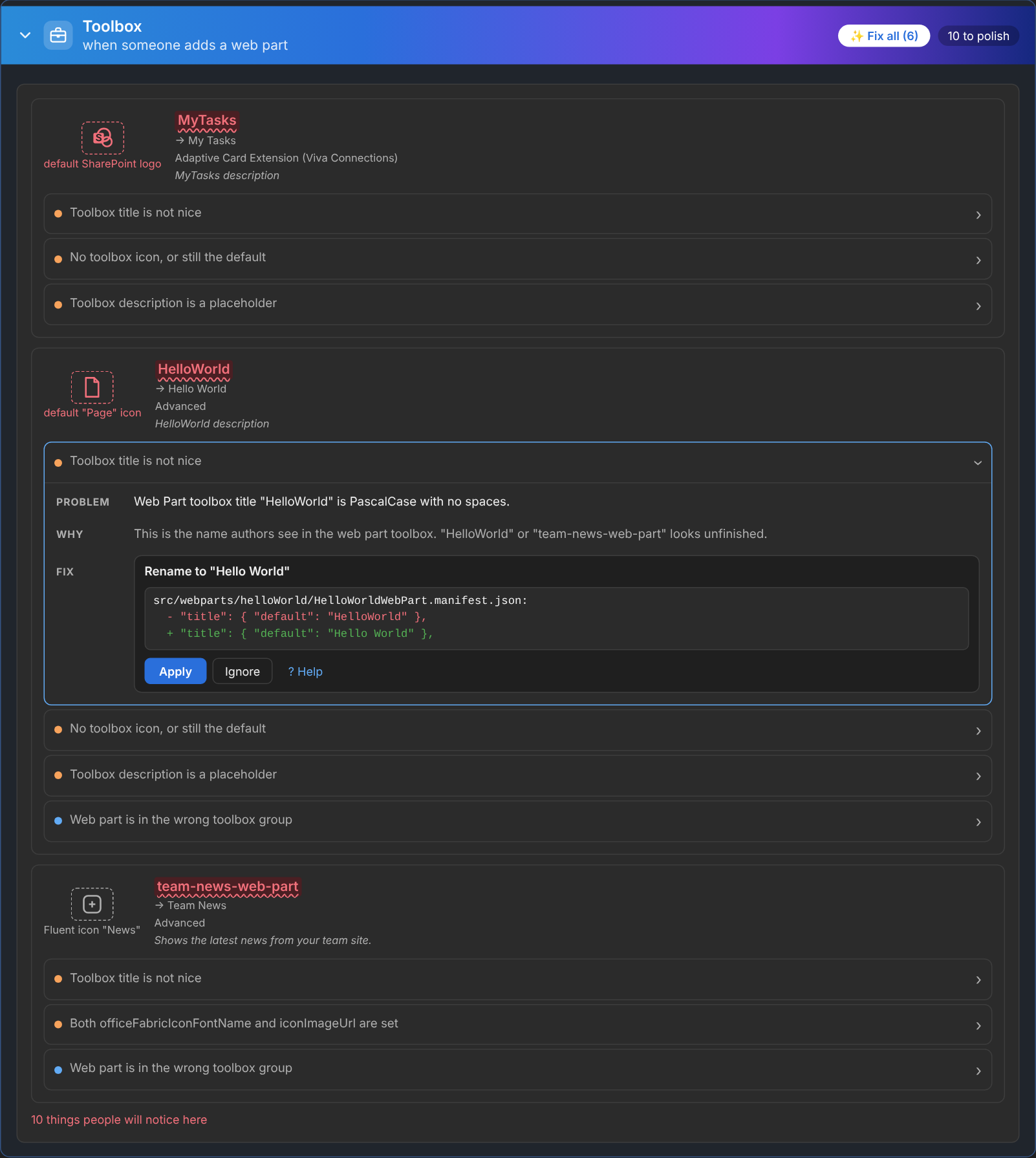
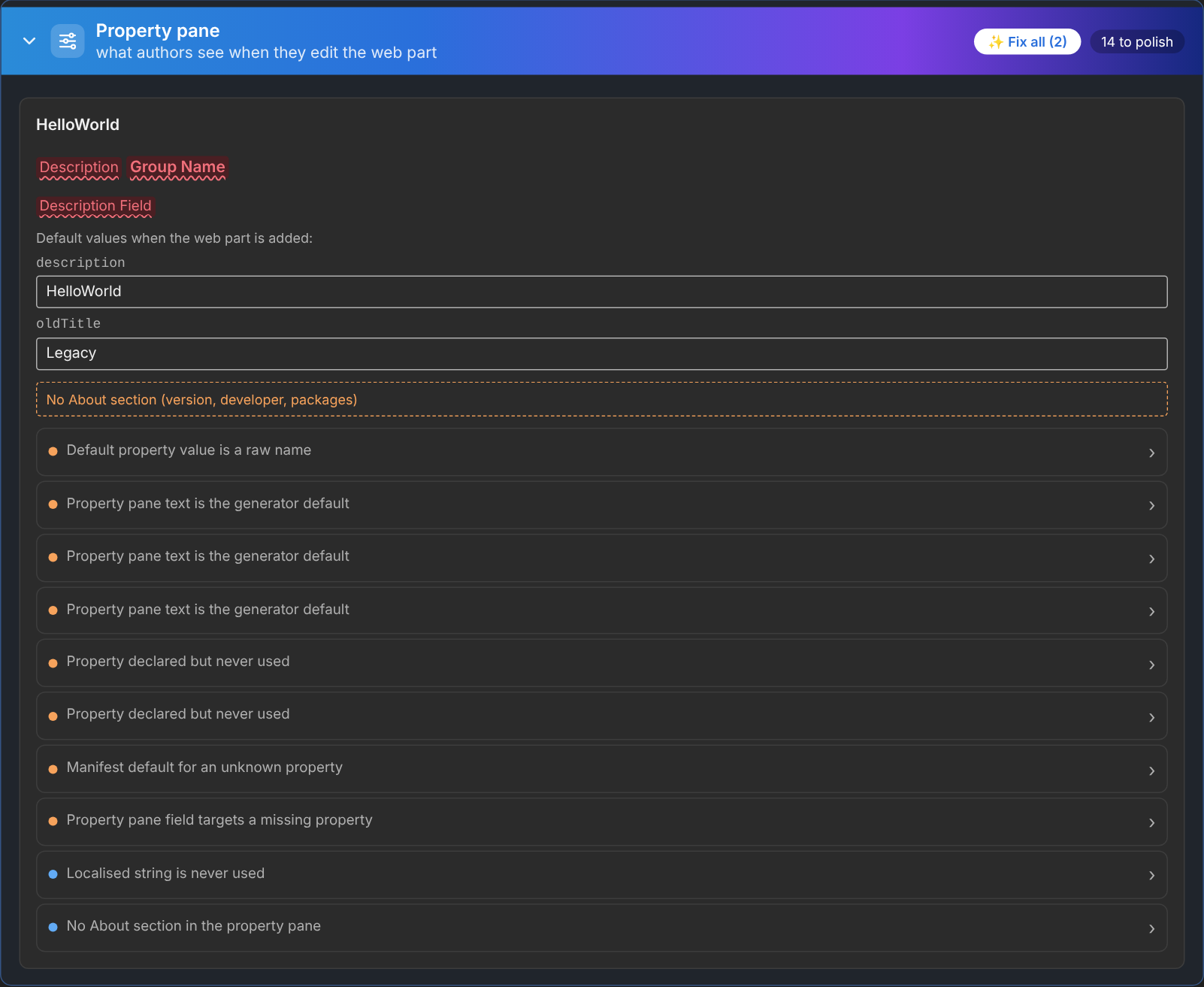
Fix step by step
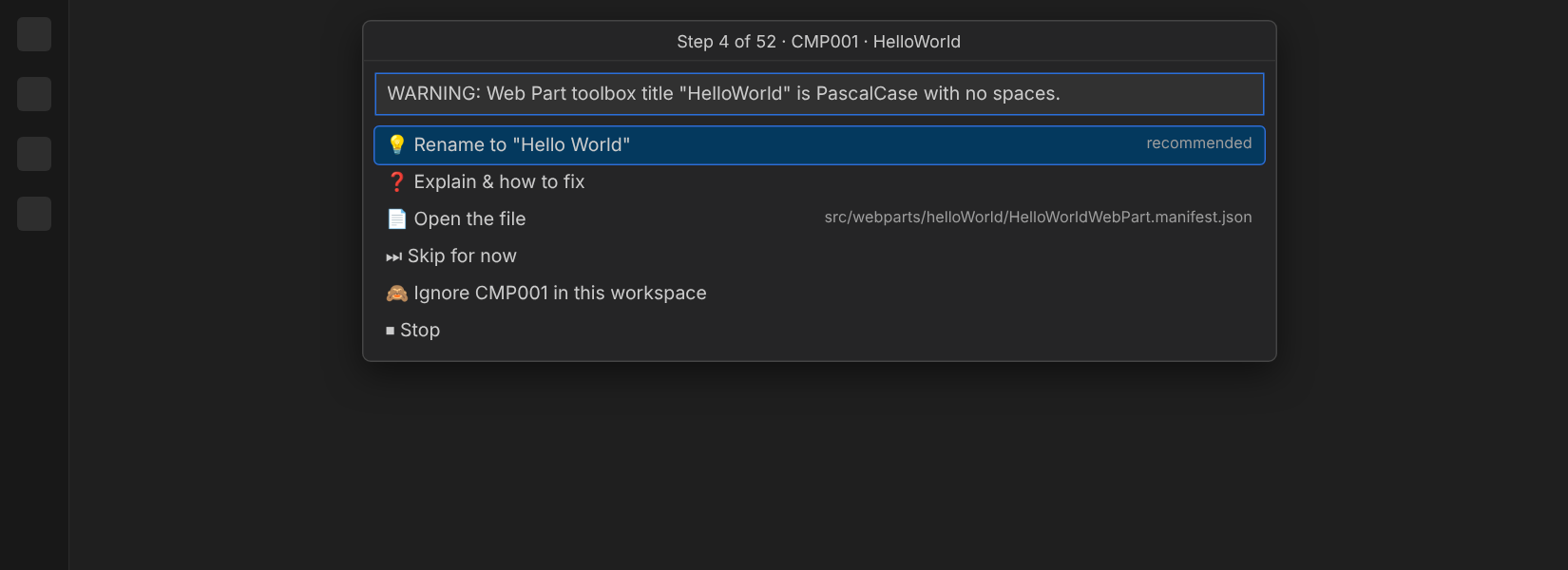
Click ▶ Fix step by step at the top of the report (or the ▶ on the panel). It walks through every issue, worst first. For each one you can:
- Apply the recommended fix - or another option where there are several
- Explain & how to fix - opens the help for that rule
- Open the file at the right line
- Skip or Ignore the rule for this workspace
It re-scans after every change, so knock-on issues (like the About version going stale after a version bump) are picked up too.
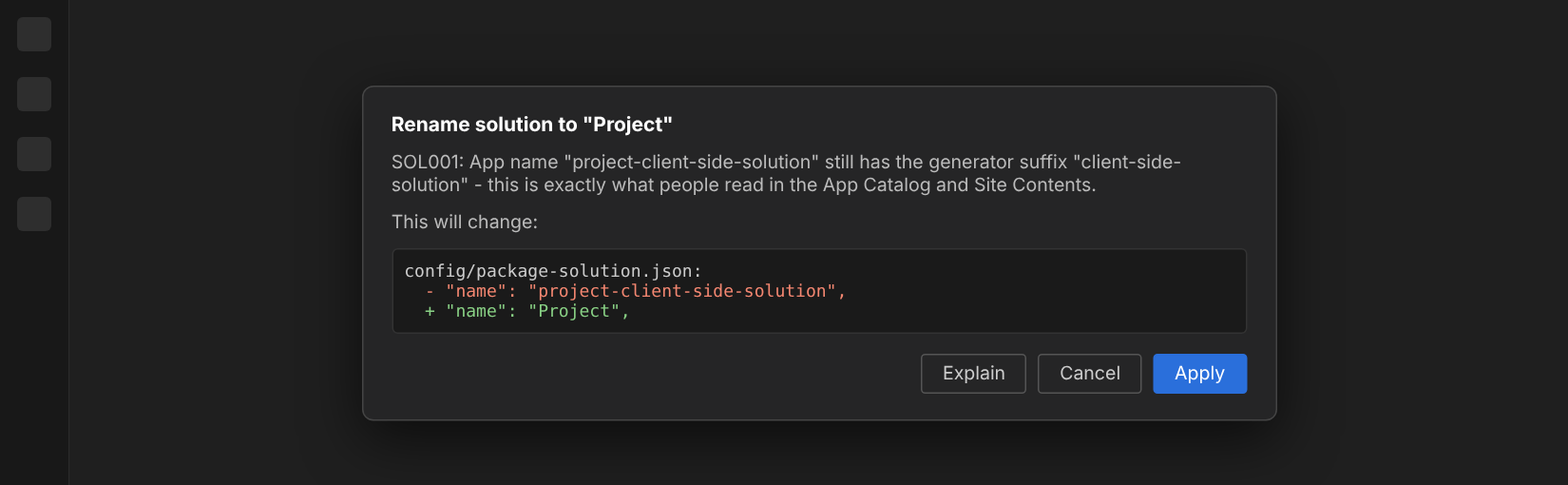
Nothing changes without you seeing it
Every fix first shows what it will change - the file, the lines before and after, any files it creates - and waits for Apply. ✨ Fix all lists every change first.
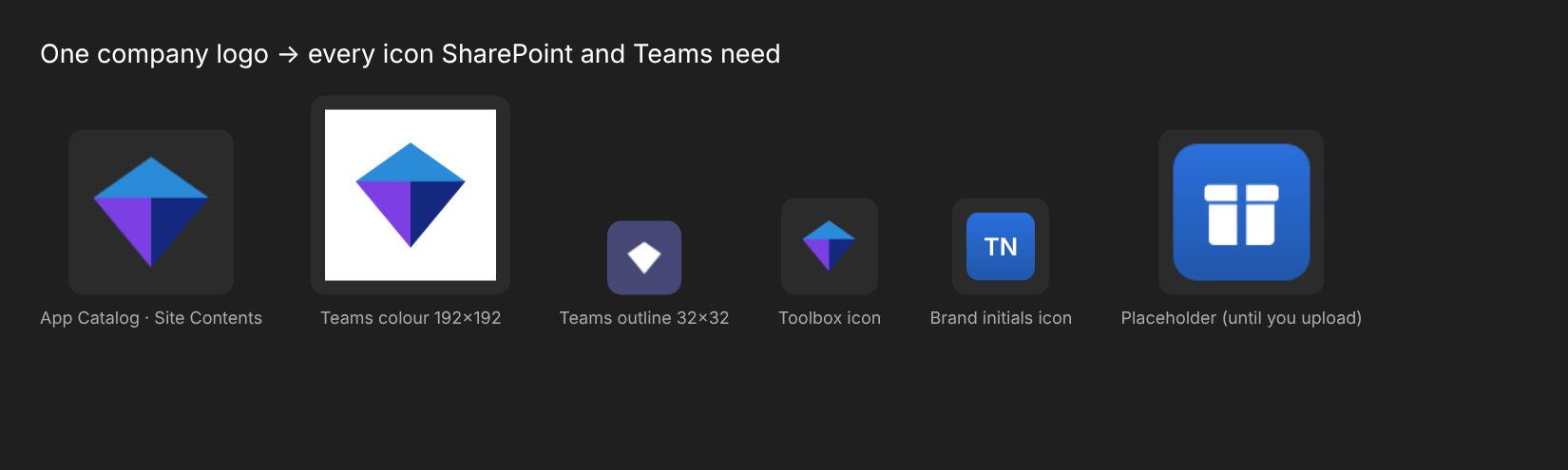
Your company logo
Run SPFX Pretty: Upload Company Logo (or click 🖼 Upload company icon on the icon finding). Pick a square PNG and it becomes:
- the 96x96 App Catalog / "Add an app" / Site Contents icon
- the Teams colour (192x192) and outline (32x32) icons
- optionally, the toolbox icon for every web part
It is remembered for every project. A brand-colour placeholder icon is flagged until you upload a real one.
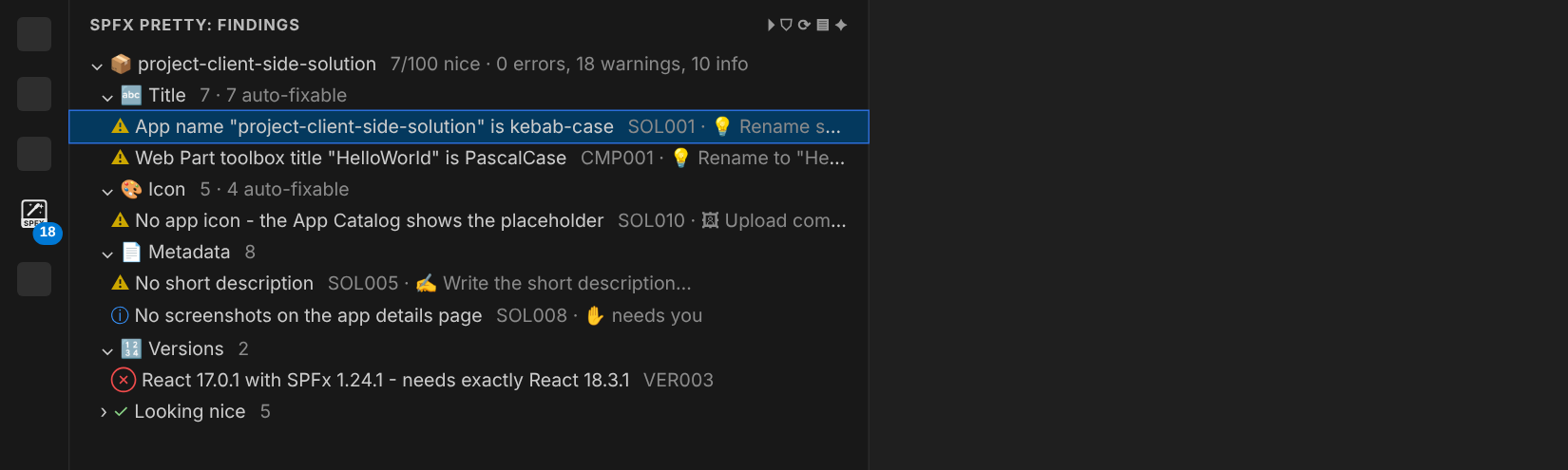
The findings panel
- Filter (funnel icon): All / Errors + warnings / Errors only.
- Each row shows its fix, e.g.
SOL005 · ✍ Write the short description…. - Right-click any finding: Apply Fix, Explain & How to Fix, Open, Copy Message, Ignore This Rule.
- Where it lives: Activity Bar, Explorer sidebar or both - setting
spfxPretty.location. Lost it? Run SPFX Pretty: Show Findings Panel.
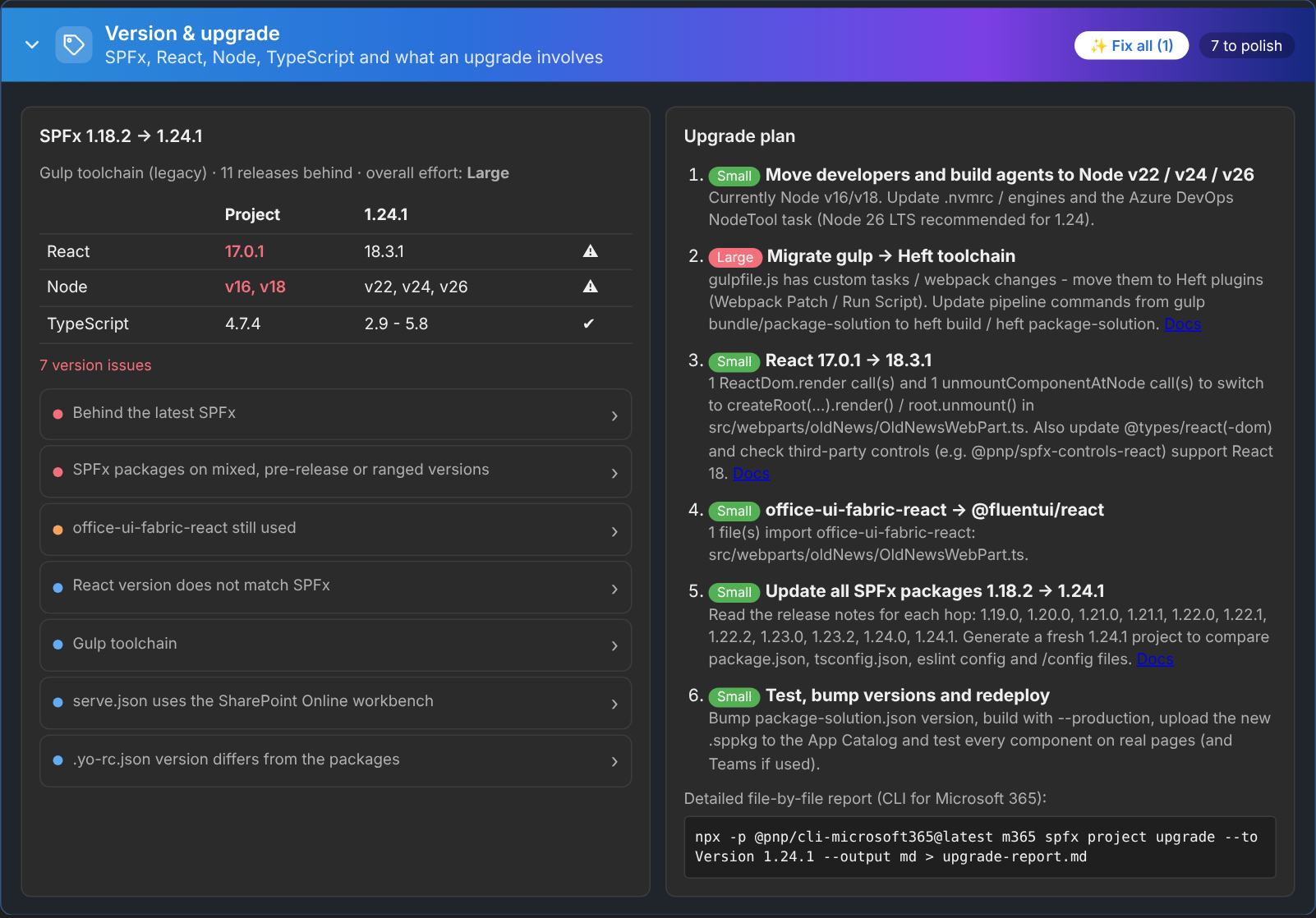
Version check & upgrade assessment
Run SPFX Pretty: Version Check & Upgrade Assessment for a Markdown plan you can paste into a work item: current vs latest SPFx, React / Node / TypeScript, each step with Small / Medium / Large effort, and the CLI for Microsoft 365 command for the file-by-file report.
In a pipeline
The same checks run from the command line - see Settings & CLI.